Thursday, May 29, 2008

My Top 5 Wordpress Tips

So you have just installed Wordpress but now your not exactly sure what to do. A scenario that I’m sure quite a few people have come across. Well here are my 5 top tips for getting Wordpress working quickly and extending it to do some cool things.

Use Akismet Spam Catcher

There are a lot of different spam deterring plugins for Wordpress but nothing seems to beat the Akismet plugin that comes with Wordpress. To use Akismet you will need a Wordpress API key which can be found in your account information e-mail when you sign up for a free wordpress.com account. Don’t have one? No problem Just go through the registration but say you just want a username & not a blog. Look in your account info e-mail, then copy and paste the API key from the bottom of the e-mail into Akismet. Easy, huh?

P.S. Akismet is only free for private use. If you want to use wordpress for a commercial purpose then you cannot use Akismet without buying one of their commercial API keys. They start from $5/month which is excellent value.

Find A Free Template.

Wordpress, unlike blogger, has sh*t loads of themes available all over the web. The problem? Because there are so many it’s hard to find the good ones. I mean quite frankly some of them are rubbish but if you can find the sites with the super sexy templates then you could be onto a winner.

There are a few sites I can recommend you start at but first try installing K2. K2 is kind of a theme that extends on Kubrick, Kubrick is the original Wordpress theme that you see straight after install and while K2 makes your blog look similar to Kubrick it enhances the features to include things like:

  • Extended Archives
  • Ajax(On-the-fly) Comment Submission
  • Replaces Widgets With Advanced Sidebar Moduals
  • Custom Styles, Keeps All K2 Functionality As Styles Only Alter The K2 CSS

Those are just a few things that K2 adds. Even though it has all of these new features it can still be extended with plugins & if you are javascript savvy you can have a little mess around with the jQuery JS library that K2 uses and probably do just about anything.

There are of course normal themes that you can find. A good place to start is Wordpress’s own theme directory. If they have nothing that you fancy then head for good ol’ Google, but to give you a head start here are a few of my favourites:

  1. Top Wordpress Themes
  2. Kate’s Theme Viewer
  3. Smashing Magazines 83 Themes You Probably Haven’t Seen

The last one is where I found this themes counterpart, Gridlock. I now use Gridlock K2 which is the Gridlock theme ported to the K2 Styling system that I mentioned earlier.

If you are a competent X/HTML coder and either know a bit of PHP or are willing to learn the basics then you could make your own theme. I use this theme because it suits my whole blog and it’s subject, if you can’t find a one you feel works then making your own could be the best idea. For ideas on how to start making a theme try WPdesigner. Unfortunately the author, Small Potato, is selling WPdesigner for personal reasons but hopefully the articles will stay around for a good while.

Use Pictures? Then Try One Of The Lightbox Plugins

Yep, I know it’s probably overused but it looks professional and allows people to view a full size image without leaving the page. As you may have guessed people tend to be lazy, we don’t want to admit it but we’d much prefer to use the Lightbox than press a thumbnail and have to press the back button.

So what did I mean by ‘One’ of the Lightbox plugins. Well there are lots of versions of the Lightbox such as the original Lightbox & Thickbox. I also like Highslide JS but if you are a commercial site you will need to pay for it. There are lot’s more but some don’t have Wordpress plugins yet. If that’s the case you could always try to add it yourself but that’s for another post.

Keep Organised With Tags & Categories

It may sound obvious but one of the best ways to keep your WP posts organised is by using the built in Categories and Tags assigner. When you make a post just give it a relevant Category and some relevant Tags. There is such a thing as overdoing it though. While Categories can keep your posts organised making too many of them can make it impossible to find anything. Try to make broad Categories that cover a fairly large scope of the same subject.

Lets say I have a PHP tutorial about OOP then I could use PHP as the Category but use Tags to place it under sub-categories. In that example post I would probably use the tags OOP, PHP, Function Scope and other things to do with OOP.

Help Google Find You & Keep Simple URL’s With Page/Post Slugs.

Now, Google supposedly uses URL’s as part of it’s spider system when finding and parsing your site for listing in Google’s listings. To help Google understand what your pages are about a bit more we can set up a better URL formatting style.

Go to Options on your WP admin bar and then pick Permalinks. On this page you can alter how WP shows your URL, by default it is like this:

http://domain.com/?p=123

Now this doesn’t tell Google anything about that page. Picking the second option is much better. Not only does it tell Google the date it was posted but it also allows the use of a page/post slug. Enable that option and then remove the /index.php/ in the custom box and put the / back at the front. This removes the annoying need to prefix any static links with /index.php/.

Now when you write a post or page WP will generate a slug for you but don’t just assume it did a good job. Generally it does but sometimes it fails quite miserably but that doesn’t matter, we still love you Wordpress we just need to make some adjustments. The best rule of thumb I have found for page/post slugs is to name them exactly the same as the post/page title with hyphens(-) instead of spaces. Although if you use spaces I think WP replaces them with hyphens anyway.

Now all you have to remember is that if you need to make static links to your own site inside posts/pages your URL is slightly different. it will always go like this for posts:

http://domain.com/yyyy/mm/dd/post-slug/

And for pages it’s just:

http://domain.com/page-slug/

Remember though it is generally bad practice to use http:// links when linking internally. Instead use:

/yyy/mm/dd/post-slug/

The / at the front tells the server that you mean from root. Another words it’s like writing http://domain.com/ without actually writing it. Why is this good? Well if your domain name ever changes you won’t have to manually change your static links.

Well that’s it. They are my top 5 tips for using Wordpress. If you have any tips you’d like to add or you disagree with one of mine please leave a comment, it’s always nice to read them.

Saturday, May 17, 2008

How to put IP address location of visitor in your WordPress?

ipligence01.gif

It’s only additional add-on for your blog. If you are interested to put it in your blog, you may follow the steps below:

Note:

  • I Assume that you are familiar with basic WordPress menu

  • Familiar with basic HTML code

Step 1. Copy the codes from http://www.ipligence.com/

Click ‘free IP search‘.
ipligence02.png

Goto to the bottom page. There are 2 choices of display that you can use. If you want to use like my one, you can choose infobox #2.
ipligence03.png

Step 2. Copy the link.

”ip-location”

Then separate the code into:

Step 2. Copy your ipligence link into your WordPress.

Login to your wordpress and goto to your blogroll.

You can create a new category or just put into existing category.

Don’t forget to put ‘ipligence’ on ‘Name’, ipligence link address on ‘Address’ and ipligence image on ‘Image address’. Click ‘Save changes’ to save.
ipligence04.png

ipligence05.png

Friday, May 16, 2008

WordPress tricks – How to put Who’s-amung-us in your WordPress?

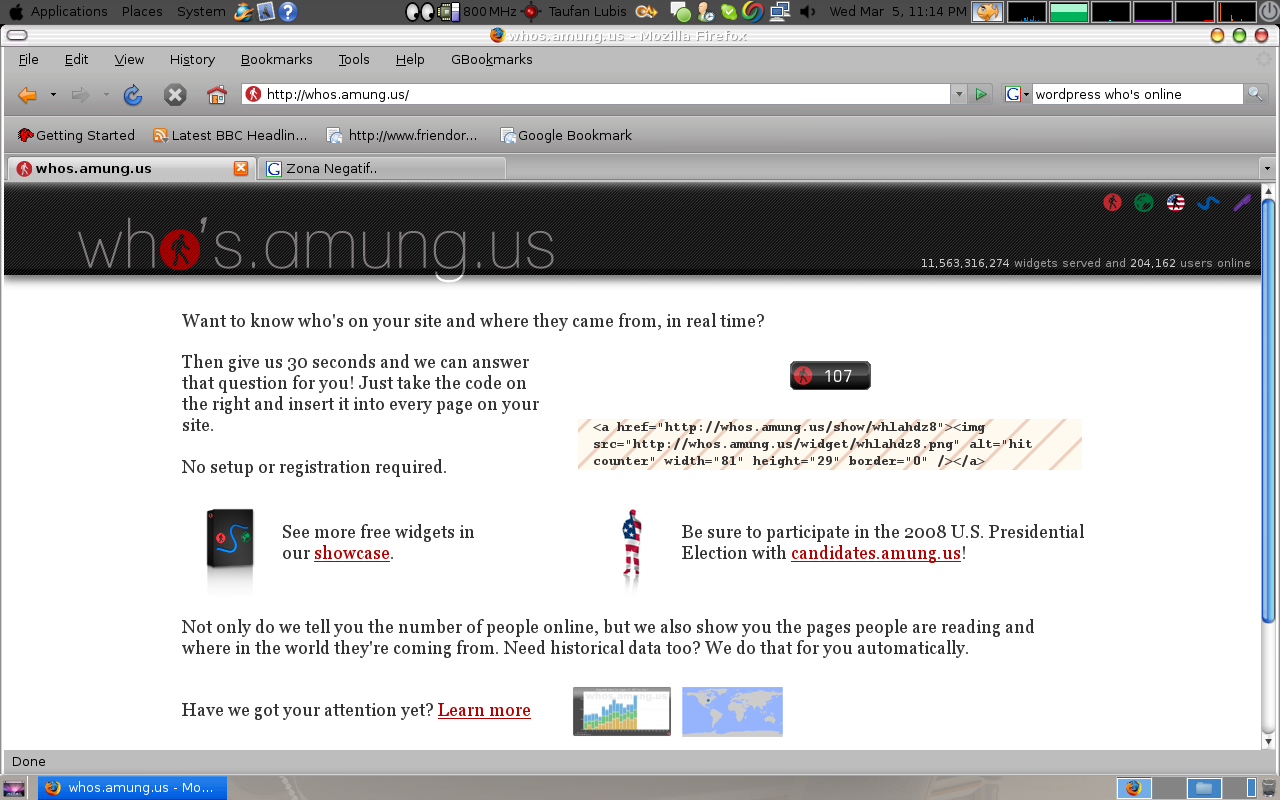
Do you want to know how many visitors browse your blog in real time? I suggest you to use ‘Who’s.amung.us’. There few views that you can use. In this sample, I will show you one of it.

Step 1. Go to ‘http://whos.amung.us

If there are no any changes, you will see as the screen below. There is 3 lines code under ‘107′ picture. Copy all that codes.

Step 2. Open your WordPress blog and goto “Design-Widgets” section.

Step 3. Scroll down, find ‘Text’ widget and click ‘Add’ button.

One text widget will show up on the right side. Then click ‘Edit’ to fill the content.

Type ‘Who’s online’ for the title and paste the codes that you’ve copied into the second part (as per the screen below).

Finally, click ‘Save Changes’ button to save your work.

Now, you have a new Widget at lowest part of your Display Widgets.

WP Tiger Administration v3.0

tiger_admin_preview.jpg

A complete redesign has pushed WordPress Tiger Admin into version 3. It boasts a more streamlined design, better plugin compatibility, and general all-around goodness. Stop on by the plugin page to grab your copy. I’m very happy with the changes that were made. It’s taking on much more of my style, while leaving in a little OS X feel to it.

I think Softmilk is better (more aqua style) but this one is also very interesting. You can read full story here: WP Tiger Administration.

In new v3.0 we have:

* Completely Redesigned
* Better WordPress 2.0 Support and Compatibility
* Reported Speed Increases

Just upload it to plugin directory and active by admin panel and it should work. I use it on my other blog with Firefox and didn’t saw any bugs.

It works very well. It looks more like apps and that is very good for me.

Wednesday, May 14, 2008

WordPress Cache system and CPU

Before cache system CPU looks like this:

wordpress-cpu-usage-before.png

After enable some kind of cache system (I use two of them for my sites: WP-Cache or if this doesn’t work i use WP-Super-Cache)

wordpress-cpu-usage-after.png

It’s frustrating, because caching is a completely solved problem in other programming communities. For example, the .NET framework has had page output caching and page fragment output caching baked into ASP.NET for years.

What I just don’t understand is why, after all these years, and all these documented problems, WordPress hasn’t folded WP-Cache into the core. If you’re ever planning to have traffic of any size on a WordPress blog, consider yourselves warned.

Read more Behold WordPress, Destroyer of CPUs

I also don’t know why they don’t use this cache system for default install of Wordpress ?

Tuesday, May 13, 2008

Contact Form WordPress Plugins

As noted in Subscribe, Email Mailing List, Blog Update Alerts, and Newsletter WordPress Plugins and WordPress Plugins for Comments from the month long series of WordPress Plugins, there are a lot of ways for you to keep in contact with your blog’s readers. There are also different ways for them to get in contact with you through contact forms.

Blog readers can contact you through your blog comments, through an email address, or through a contact form. A contact form is a popular method as it hides the email address in the form, providing more security. Contact forms can also be set up to alert you that the email comes from your blog and can be set up to ask specific questions, narrowing down the request or question the user might have.

For example, if you are providing technical support for a WordPress Plugin, shareware, freeware, or other software program, you can set the form to ask questions which will narrow down the focus, thus directly the email inquiry to the right person or department to expedite the response. Questions such as “Are you requesting technical support, customer service, or want to say thank you or scream at us, click the appropriate box.” If you have multiple bloggers, some contact forms can be set up to contact the specific blogging author directly.

The most popular and “original” contact form for WordPress was Ryan Duff’s WP-ContactForm. It was simple, easy to use, and did what it needed to do. Based upon this excellent foundation, many WordPress Plugins followed, adding features, improving security, and adding AJAX features to make the process faster.

For those who really loved Ryan Duff’s contact form, Contact Form ][ seems to be a popular replacement.

PXS Mail Form WordPress Plugin added features to the contact form for sending CC (carbon copies), character set (charset) recognition from the blog’s settings for international usage, email address checking, CSS styles from the Administration Panels, referrer checks, multiple recipients from a drop down menu for multiple bloggers, and even sends a copy of the message to the sender, if desired.

Enhanced Contact Form is another “improved” contact form based upon Ryan Duff’s. Additional features include the referring page on the site, original referrer, and other small details that can help you learn more about how the visitor accessed your blog.

Accessible and Secure PHP Contact Form for WordPress is called by the author “accessible, usable, spam-proof, and secure contact form”. Based on the PHP Contact Forms by Mike Cherim, this contact form is designed to be fully protected from spam email harvesters and offers a wide variety of features including styling from the Admin Panels with optional choices build in to style the contact form. It also features a multiple user version for a fee.

Clearskys Enquiry and Contact Form WordPress Plugin creates a form for the visitor to fill in with customizable options to gain more information from the visitor regarding their contact request. This Plugin is designed for businesses offering email customer support, business inquiries, and even booking and reservation requests. It gathers the information needed to make the inquiry or appointment and emails it to the blog administrator.

Cforms WordPress Plugin allows for multiple contact forms throughout your blog, or even more than one contact form on the same page. It uses AJAX, but degrades gracefully for non-AJAX/Javascript browsers. It features a lot of customization and a clean layout.

Other contact form WordPress Plugins for WordPress include:

Hiding Your Email From Harvesters

Harvesters are web bots which trawl the web looking for email addresses to use for email spam. They find them in the most unsuspecting places, including in your blog. There are a variety of WordPress Plugins which allow you to post your email address, and the emails of others, and “hide” them so they are visible to the reader, clickable for instant emailing from your blog’s page, and yet invisible to email harvesters.

What do you use for your contact form in your WordPress blog? And are you using something to hide email from harvesters, protecting yourself, your blog authors, and your commenters?

WordPress Plugins for Images, Photographs, and Graphics

Photographs and graphic images are an integral part of our blogs today. We want to show people what our words often can’t. Besides, pictures are fun to look at.

WordPress offers fairly simple image uploading and the automatic creation of thumbnails, but there are a lot more you can do with your images with WordPress Plugins.

There are a lot of WordPress Plugins to help you upload, sort, arrange, enhance, edit, frame, popup, popin, lightbox, photo album, work with online image storage support and services, and manage your images.

Unfortunately, not all media-based WordPress Plugins, no matter how impressive and fun, are well supported or well documented. Creating an image-oriented WordPress Plugin is challenge, hard work, and takes a lot of maintenance as technology changes and WordPress upgrades. Many create these for fun and then let them go. I’ve done my best to only highlight the WordPress Plugins which feature strong documentation, easy instructions, and show recent activity and support.

Let’s begin with WordPress Plugins that help you edit your images before publishing.

Photo Editing WordPress Plugins

Most digital images are created with cameras and scanners which include their own photo editing software packages. Thus, most people edit the image before they upload it, or they don’t edit it at all and just post it on their blogs as is. This may explain the few WordPress Plugins for image editing.

ImageManager is the most popular photo and image editing WordPress Plugin. It integrates the stand alone PHP ImageManager + Editor with your WordPress Administration Panels in WordPress 2x+ and WordPressMU.

You can browse and upload images quickly. From the Admin Panels, you can edit your images for cropping, rotating, flipping, and scaling, as well as create thumbnails.

It integrates well with other image-oriented WordPress Plugins such as Lightbox by Huddle Together and WP lightbox JS.

Lazyest Gallery is a well done image management WordPress Plugin featuring some editing capabilities such as thumbnails, resizing, and cropping. It also features good caching, framing, captions, international character recognition and handling, images from folders, stylesheet editor, and various gallery format presentations.

It works with many other WordPress Plugins and Javascripts for images as addons or built-in features such as Filosofo upload for uploading a single image as an album, Lightbox JS v2.0 Plugin and WP lightbox 2 for the Lightbox effect.

While not an editing tool, if you work with a lot of images on your blog like I do, the Batch Image Uploader WordPress Plugin is a treat. It puts back in the ability to upload more than one image at a time to your WordPress blog. It speeds up the process and gets those images ready for inclusion in your blog quickly.

PhotoPress is a WordPress Plugin that adds a pop-up loader and image browser to the Write Post panel. It also adds random image functions for displaying images in a album or gallery.

WordPress Plugins to Display Images on Blogs

There are two types of WordPress Plugins to help you to display images on your WordPress blog. The first type uses images you’ve uploaded to your blog’s server. The second type uses images from online image storage services such as , phpwebgallery, Zenphoto, and other online image hosting sites. Some gallery WordPress Plugins will work with only one resource, while others will service more than one.

The images are displayed in two basic formats:

  • Within a post or Page
  • In the sidebar, header, footer, or other template file outside of the post content area

Both formats typically use thumbnail images which link to a larger view of the same image.

The first format showcases images in a “gallery”, a page on your blog which showcases graphic images or photographs. The images are typically arranged in a grid pattern and may or may not feature outlines, borders, colored backgrounds, or other design elements to showcase and “frame” the images on the page.

Example of a photo album or gallery showcase on a blog

Gallery WordPress Plugins help you arrange the order of how the images are to be displayed, the size of the thumbnail, and other layout options. Galleries are also known as Photo Albums. Some gallery WordPress Plugins will automatically generate thumbnail sized images as you upload the pictures.

Galleries and photo albums can work in two ways. One method is to showcase all the images you have in a folder or account. The more popular method is to group images together, either by storing them in separate folders, assigning them categories or groups as a “collection”, or handpicking which images should appear manually. Some WordPress Plugins and image tools allow you to create sub-albums or sub-galleries, breaking up the main collection into smaller ones.

Add image via WordPress Text Widget on WordPress.com blogsThe second format for displaying images on your blog allows you to put images in your sidebar, header, footer, or elsewhere outside of your post content area. This technique usually involves familiarity with WordPress Themes and template files as you may have to edit them to add the appropriate code to generate the images.

Images on sidebars and headers can be shown one at a time randomly as the page views change, in a slide show where images change during the visitors time on the page, in a small grid as small thumbnails, and in many other formats smaller than the gallery effect found on page views.

Traditionally when a linked thumbnail image is clicked, the visitor is taken to a new page with only the large version of the image displayed. The background is typically white and boring and there is no caption, title, or information about the image. With recent advances in AJAX, Javascripts, and layering, images can now be viewed through the use of a lightbox or popin effect.

Popin effect on a thumbnail linked image shows the page belowThe popin effect loads the larger image in a new “window”, similar to a popup window. However, this is not a separate window but a javascript or AJAX effect created on a layer of the page. The image looks like it is in a window that may or may not be able to be moved around on the page. The most important characteristic is that the popin window sits on a layer above the page and you can still see and read the page underneath.

Lightbox effect with the image framed against a dark or faded background over the content belowThe lightbox effect hides the content on the page while showcasing the image on a top layer of the page. The hiding is done by blacking out or creating a semi-translucent background on the top layer framing the larger image. By fading out the page in the background, the larger image becomes the focal point.

Both effects feature a close window feature or the ability to click off the image to close the popin window feature. Many offer next and previous links to move through the displayed images without returning to the page underneath.

Be sure and check out the Photoblogs and Galleries information on the , the online manual for WordPress Users, as well as the WordPress Codex Image Plugins List for more information on using images in WordPress.

Display Uploaded Images

The following WordPress Plugins display images which you have uploaded to your WordPress blog’s server. Typically, they are in a core folder of your own choice, or one specified by WordPress or the Plugin. Some of these WordPress Plugins allow grouping of images into collections or sub-galleries or sub-albums through the use of sub-folders.

Yellow Swordfish’s Popup Image Gallery WordPress Plugin creates a user controlled slide show where the user clicks on the thumbnail images and sees the larger one in the main frame. It adds interesting slide show transitions, and the option to turn them off, and optional text under the slide show controls and captions. You can add random galleries and images to your sidebar as well as posts or Pages.

Lazy-K Gallery WordPress Plugin showcases images in a gallery form with thumbnail and slide caching features, and the ability to comment on each image or folder individually. You can include the gallery on a Page or post, and create sub-galleries.

Yet another photoblog, aka YAPB, is a WordPress Plugin that converts your WordPress blog into a photoblog. There are easy uploading features and you can write posts as you normally would. Thumbnails can be easily made of the images in several different sizes. EXIF data process and output is supported as well as full i18n international support, ping services, and can work on about any WordPress Theme. If your blog is all about the images and little article content, give this one a try.

Inline Gallery for WordPress allows for multiple galleries, captions, and integration with the Rich Text Editor (WYSIWYG editor), AJAX controls, and customizable template functions.

The d13gallery WordPress Plugin allows easily embedded thumbnail image galleries inside your WordPress posts. Images inside of the site’s folder are scanned, resized, and displayed in a simple grid layout as clickable images to the larger original image.

iGallery Plugin for WordPress is a different kind of gallery WordPress Plugin. The images are stored in a folder on your server, but you control which images are seen on your blog. You create a list of your images, each on a new line with a colon between them inside of the embedded image tag, and the photographs will be presented as a row of thumbnails with one large image above them. Click on a thumbnail image and the large image changes above. You can control the size of the thumbnails and the large image.

fGallery WordPress Image Gallery Plugin allows displaying images from the server with resizing and thumbnails, easy use of a Lightbox, will allow comments on images or not, displays an album RSS feed link, allows sorting the order of the images and albums, captions, and more.

IMG-Shark WordPress Plugin “grabs” images from the uploads directory and inserts them, as assigned, into your posts.

Other gallery and photo album WordPress Plugins that use images on-site include:

Online Image Hosting Service Integration with WordPress Blogs

If you store and share your images through , phpwebgallery, Zenphoto, or other online image hosting sites, there is usually a WordPress Plugin that will help you feature those images on your WordPress blog in different ways.

Flickr WordPress Plugins

The following WordPress Plugins integrate your blog with your Flickr account and images.

Flickr Photo Album for WordPress by tan tan noodles displays your Flickr photosets in your WordPress Administration Panels and allows you to control the look of how they are displayed on your WordPress Blog. You can easily insert your Flickr photographs and images into your WordPress Post edit panel and includes a lot of other powerful features.

FALBUM WordPress Plugin displays Flickr images and photosets with a lot of customization features on your WordPress blog including albums of recent images, viewing photos using tags, view tags in a cloud format, pulling EXIF data from Flickr, and much more.

Flickrspinnr WordPress Plugin creates a rotating 3D cube of your Flickr images in a sidebar widget.

Slickr Gallery WordPress Plugin is an AJAX photo gallery Plugin which allows you to bring your Flickr-hosted images and photographs into a gallery on your blog. You must have a Flickr account and a Lightbox WordPress Plugin for this Plugin to work. It also requires libcurl and XML PHP libraries on your host server.

Crossroads Plugin also works with Lightbox 2.0 and helps you add Flickr images to your WordPress posts or Pages with thumbnail images and Flickr photo comments.

Other Flickr WordPress Plugins include:

Gallery2 WordPress Plugins

The following WordPress Plugins work with images stored on .

Other Online Image Storage Services

The following WordPress Plugins work with other online image storage and sharing services.

Image Plugin Accessories

While not technically “accessories”, the following WordPress Plugins work with other Image WordPress Plugins or on their own to help you add more image features to your blog.

Fun and Helpful Image WordPress Plugins

iMax Width WordPress Plugin sets a maximum image width so large inline images won’t destroy your WordPress Theme layout and design. It adds height and width parameters to all IMG tags so the pages will load faster and conserves bandwidth times as well as the distortion caused by images loading after the text.

Lazyest Gallery Thumbs SlideShow Plugin rotates random image thumbnails from the Lazyest Gallery. It also comes as a WordPress Widget. You can control the portrait, landscape or both image types to show, the loops to run, fading delays, CSS styles, and more to create your thumbnail slide show on your WordPress blog.

Do you want your images to represent your posts? The Post Thumbs Plugin uses thumbnail images to represent your various posts on multi-post views and in the sidebar. If you have an image in your post, the Plugin will find it and convert it into a thumbnail and showcase that as a replacement for the text in a menu of images.

Rotating Images

A lot of bloggers want to feature an image that randomly rotates and changes as they watch, with each page view, or on a schedule. I’m using these in several of my blogs to display random photographs. Some WordPress Plugins and scripts which handle random image rotators include:

Lightbox Effects

Huddle Together Lightbox JS creates a lightbox effect which allows images to be seen individually or in groups, captions, has fancy visual effect and transition options to choose from, and is backwards compatible with older versions of WordPress.

WP Lightbox JS WordPress Plugin also uses Javascript to display images over the top of the current page with a “faded out” semi-transparent background. It adds a quicktag to your buttons on the Write Post panel for fast adding of the image information.

Thickbox works with the Thickbox WordPress Plugin to allow lightbox effects and more for images on your WordPress blog.

Other lightbox effect WordPress Plugins include:

Popin Effect WordPress Plugins

The popin effect creates a “window” on a layer above the page showcasing the image. Image popin effect WordPress Plugins include:

This is not representative of all the various image-oriented WordPress Plugins out there, but does give you a good sampling to try.

Do you have a favorite WordPress Plugin you use for handling and displaying images on your blog? What features are important to you and why? What do you recommend to other WordPress users and Photoblog enthusiasts?

A Month of WordPress Plugins…so far

Monday, May 12, 2008

Designing a WordPress Theme From Scratch

A lot of people are martyrs and want to get their hands in the dirt and design their own WordPress Theme from scratch. That’s okay. I did that, and then got smarter. Let’s start with the smarter choice.
  • First, find a WordPress Theme architecture that you like, be it one or two sidebars, or no header, or whatever you want. Forget about the colors, graphics, and fonts. Just concentrate on the layout. If nothing pleases you, then I recommend you try the new Sandbox Theme, another great way to start your WordPress Theme from scratch.
  • Download a couple of Themes you like and put them through their paces on your test site. Do you like the way the single post looks different from the front page, category, and archive pages? If not, try another. If yes, then it’s time to start to work.
  • Copy your chosen Theme to a new folder with a different folder name under your wp-content/themes folder. Open the style.css style sheet file in a Text Editor and rename the header section at the top to something different, like “My Test Theme” or “Ripping and Tearing”. Just give it a different name. Depending upon how much you will end up modifying the Theme, you can either leave the author credit inside or not, it’s up to you and the copyright terms of the WordPress Theme.
  • A web page without CSS style sheetUpload the new Theme Folder to your website. From within the Administration Panels, under Presentation, find the new Theme and activate it. You now have a test Theme to work with.

If you aren’t worried about bandwidth on your website or your Internet connection, you can style your site right on the Internet. If you are worried, then use the “Sandbox” method.

Get familiar with your site’s layout and structure by checking the source code and the style sheet, and begin your modifications one at a time.

I recommend that you backup your test Theme folder frequently as you go, in case you make a big mess and you need to go back, but not to start over.

Determined to Start from Total Scratch

If you are determined to redesign your WordPress Theme from scratch, you probably already know how to do this. Still, I’m here to help WordPress users and so here are some things you need to know if you are going to design your WordPress Theme from scratch.

Get Firefox!One of the best tools recently developed for web page designers is found in the Firefox Internet Browser. Called the Firefox Web Developer Extension, it allows amazing WYSIWYG on the screen live editing of the style sheets of any web page. And a whole lot more. You can learn more about how to use this to style your WordPress Themes and find your problem CSS troublemakers in the article here on The Secret of Successful Editing of WordPress Themes.

You will also need a good text editor to edit the WordPress Templates. For a list of those recommended by WordPress users, see Text Editors in the WordPress Codex.

Also, seriously consider using the “Sandbox” method for designing your style sheet and Theme.

Here is a very simple step-by-step process to start to design your own WordPress Theme from scratch.

  • Using either the Default or Classic WordPress Themes, generate a test post in your browser.
  • CSS Stylesheet exampleCopy the ID and class selectors and HTML tags from the top to the bottom of the site into a Text Editor page. This is the list of the architectural features you can change, also known as your style sheet. You can also find a fairly complete listing of all the styles in most WordPress Themes on the in Site Architecture 1.5.
    • If necessary, add selectors to the sections lacking them, like each of the template tags that generate different lists within the sidebar and/or footer. These need to be added to the various modular template files within the test Theme folder.
    • Different tags may appear on different views of your test Theme. Be sure and check the pages generated by the front page, category, archives, search, single, and Page views to find more selectors and tags.
    • When you have your list finished, then save it and call it style.css, replacing the style sheet that came with the Theme.
  • Start applying styles to the various structural HTML tags, ID and class selectors within the style.css.

Video, Music, Podcasts, Audio, and Multimedia WordPress Plugins

We used to be happy with words and pictures. Now we have to add lots of noise and moving pictures to our WordPress blogs.

The visual and audible web is here today, and videos, podcasts, music, and all types of multimedia are flooding the Internet bands. Bloggers are leading the way by hosting and showcasing video and audio files on their blogs in as many ways as there are tunes.

Multimedia files can be stored and hosted on your blog or off your blog on an audio/music and/or video hosted service site. Some WordPress Plugins are designed to work with only self-hosted files, others with only off-site hosted files. Then there are a few Plugins which will handle both.

The process of adding video, music, audio, podcasts, and other multimedia files to your WordPress blog can be simple or complex, depending upon what you want the end results to be. I’ve included a list of technical resources and articles to help you learn more about podcasting, video and adding multimedia to your WordPress blog at the end of this article.

There are good, do-it-all multimedia WordPress Plugins and there are very narrow, do-one-thing Plugins. Choosing the right one for you is up to you and your media needs. I will not recommend one over another as a favorite since my needs are different from yours. These are free, so try them until you find one you like and use that.

Note: As with all trendy and fad Plugins, many of these Plugins will be here today, gone tomorrow, as the author changes focus and stops supporting the Plugin. Some off-site hosted multimedia sites may close and go out of business, leaving you stuck, unable to access your files and hosting dead links on your blog. Things like this change rapidly, so thoroughly test and research your options before you seriously invest a lot of time and energy into one Plugin. And if your multimedia files are important to you, keep backups on your computer, just in case.

Multimedia WordPress Plugins

I’ve classified WordPress Plugins which handle all types of media as Multimedia WordPress Plugins. They will handle audio, video, podcasts, and just about every format you can throw at them.

Cool Player WordPress Plugin supports all types of multimedia files including video, audio, podcast, and hosted services like YouTube, iFilm, vSocial YoQoo, MetaCafe, MySpace, DailyMotion, and more. It supports the Rich Text Editor and HTML editor with a button for easy embedding of on-site and off-site files. It is configurable and features a lot of great options.

Anarchy Media Player WordPress PluginAnarchy Media Player WordPress Plugin also offers a wide range of self-hosted and off-site hosted video and music formats including QuickTime, Flash, and Windows Media. Anarchy Media Player WordPress Plugin hosts iTunesMore than a dozen different off-site hosted video services are supported, and dozens of different file types. It also hosts music files, including iTunes.

wordTube WordPress Plugin, also called a “WordPress Media Center”, is a WordPress Plugin that helps you showcase streaming video formats (FLV and SWF), audio files (MP3), graphics (GIF, PNG, JPG), and a variety of other video and audio formats from your blog.

Have you found other Multimedia WordPress Plugins which handle audio and video with ease in a wide variety of formats?

Adding Video to WordPress

The following WordPress Plugins handle video specifically. There are many different types of video formats and ways of presenting your videos. Below, I’ve featured video WordPress Plugins for do-it-all video sources, self-hosted videos, off-site hosted videos, video galleries, and Flash video players. This is just the tip of the video iceberg, so suggestions and recommendations are welcome in the comments below.

There are many different types of video WordPress Plugins and video player WordPress Plugins available which focus on self-hosted or off-site hosted videos, but I only found a few that will do both, and most of those are listed above in the Multimedia WordPress Plugins list.

Viper’s Video Quicktags WordPress Plugin adds quicktag buttons to your Write Post editor allowing for fast linking to off-site and on-site video files.

EmbedTheVideo WordPress Plugin and Extreme Video Plugin will allow embedding of a wide variety of video formats including on-site and off-site hosted video files, along with a lot of customization.

vPIP WordPress Plugin dynamically embeds a video after the viewer clicks on the video link. The link can be a text or image. The idea behind this multimedia player is that the page loads quickly as the embedded video loads after the link is clicked. It works with QuickTime, Windows Media, and Flash. If you host large video files, this might be an alternative to waiting for long page loads.

An interesting twist on adding video to your blog is enabling your readers to respond back with audio and video. ITP Research offers the Video Comments WordPress Plugin which allows comments to be made on your video as people are watching it. A popup window displays the video and commenting area. As a video is watched, comments associated with it are shown. Comments can be made at any time in the video.

The concept behind the comments is not so much that people can leave comments anywhere they want, which is probably what will happen, but to have the comments act as a subtext to the video. This could be an interesting addition to your video blog.

Video Gallery WordPress Plugins

The following Video WordPress Plugins display a gallery of videos on a WordPress post or page. This is an easy way to create a visual gallery of different videos, especially if you host a lot of video tutorials or a video collection.

Flash Video Plugins

The following list of video WordPress Plugins specialize in producing videos with Flash or Flash videos.

Self-Hosted Video WordPress Plugins

A self-hosted video WordPress Plugin is one that only supports video files on your blog’s server. To the best of my knowledge, they do not allow videos hosted off your blog like YouTube or Google Video. To use these, upload the video file to your blog’s site and then link to the file with the options found in the Plugin.

Off-site Hosted Video WordPress Plugins

The hottest trend online today are videos hosted off your site on YouTube, Google Video, or one of more than a dozen different video hosting services, all vying for your business.

The following video WordPress Plugins are designed for the most part to only handle video files not hosted on your site, only videos hosted off-site on one of the many video hosting services. Some will host many different video hosting services, while others are limited to only one specific service.

WPVideo Player WordPress PluginWPVideo WordPress Plugin is considered by many to be the easiest Video Plugin to use for embedding video hosted off your blog. Once installed, just add the tag snippet with a link to any YouTube, Google Video, MetaCafe, or other hosted site video file into a post and the video automatically displays. Configuration includes display of additional data such as video title, duration, and a download link.

WordPress Video Plugin covers 14 different online video services for easy embedding of videos into your WordPress blog.

Google VideoSearch WordPress Widget embeds Google Video AJAX search into your WordPress sidebar to help your reader search for popular videos or specific video categories.

Other off-site hosted video WordPress Plugins include:

Adding Podcasts, Music, and Audio to WordPress

By default, you can easily add podcasting files into WordPress without any WordPress Plugins. Instructions are on the WordPress Codex Podcasting Guide. The article includes information on how to setup a specific podcast category and feed for your podcasts.

However, many people like the ease of including podcasts and audio files via WordPress Plugins. These Plugins also help you include podcasts, music, and other audio files through off-site audio services such as iTunes.

PodPress exampleOne of the most popular podcasting WordPress Plugins is podPress WordPress Plugin. It features integration with iTunes, preview of your podcast on iTunes, download stats, feed generation, viewing MP3 ID3 tags, control over player look and placement, support for a wide range of formats including video podcasting, podcast categories, and audio comments.

Taragana’s Del.icio.us mp3 Player WordPress Plugin plays any MP3 files or links on your WordPress blog posts and offers a tagging option for visitors to tag and post the MP3 to del.icio.us. It is very lightweight and creates a small player icon and link on your post.

There are also a variety of WordPress Plugins which bring radio to your blog. For example, WP [radio.wazee] WordPress Plugin broadcasts the popular Internet Alternative Rock Radio Station. While not exactly radio, Tornadostream allows users to choose from a wide range of music from their playlists and host them on your blog, turning your WordPress blog into a “radio station”. Audio Player WordPress Plugin will also allow you to sequence a series of music files to play like a radio station.

Other audio and audio player WordPress Plugins include:

Technical Support and Guides for Multimedia Files in WordPress

The following articles are resources and guides to help you learn more about including multimedia files in your WordPress blog including video, audio, podcasts, multimedia feeds, music, and so much more. Some of these articles offer tips on the equipment and software to use to produce your own video, music, and podcasting files, as well as how to publish them and create feeds to promote them.

Get Yourself Released

If you are going to be offering a lot of videos, podcasts, and recordings of people and their property, you will need to get a release that authorizes you to use and publish their likeness and property without incrimination or harm. The Podcast Release WordPress Plugin was developed by MWGBlog which hosts a lot of interview media. The release form is easy to use and hosted on a page on your site for your “models” to sign off on quickly and easily. Make sure you are protected with this easy-to-use form.

What Video and Audio WordPress Plugins Do You Recommend?

As I mentioned, this list is barely the tip of the multimedia iceberg. As I wrote this, I discovered two new Plugins for this category had been released. It is a fast moving and ever-changing industry so keep an eye out for newer and better multimedia WordPress Plugins, and also for the oldies but goodies to update their WordPress Plugins to work with the new technology.

So what are you using to offer video, music, audio, and podcasts to your blogging audience? Any favorites you recommend? How are you using them, and what would you like to see in future versions?

Sunday, May 11, 2008

Adding RSS Feeds to WordPress

There is a lot you can do with feeds on WordPress blogs, and I’ll be talking about that more over the next few months, but here is an interesting new WordPress Plugin and technique for creating feeds on a Page on your blog.

Shaolin Tiger’s “How to Use RSS Feeds on Your WordPress Site” describes a simple step-by-step technique for creating a Page to host incoming RSS feeds using the WordPress Feedlist Plugin.

Follow the instructions, replacing “http://www.spymy.com/” with whatever feed link URL you would like and with little effort or complex programming, you can showcase feeds on your blog.

This technique is not limited to Pages on your WordPress blog. You can also use the same technique in your template files such as in your sidebar, header, or footer.

Stay tuned for more information on handling feeds in WordPress.